Transfer Files from Android to PC Wirelessly — No USB, No Drivers
Move files from your Android phone to your Windows PC without a USB cable or a JITPOMI cloud-drive upload. SEYFR uses Iroh peer-to-peer networking and transfers at a speed determined by the devices and network path.
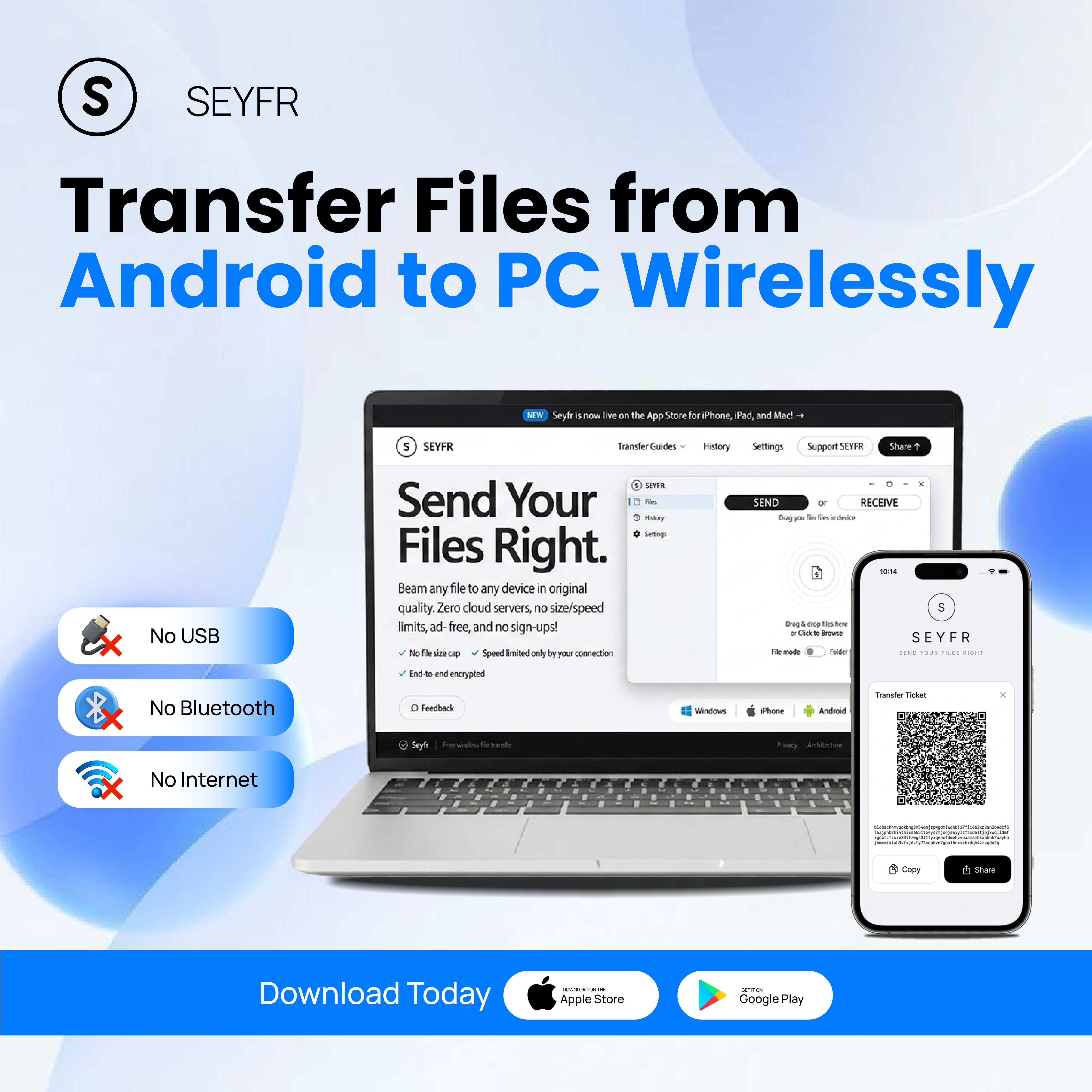
How to Transfer Files from Android to PC Without a USB Cable
Install Seyfr on your phone and PC
Download SEYFR from Google Play on a supported Android device and from the Microsoft Store on a supported Windows PC. The core features are free to use today.
Select Send on your Android phone
Open Seyfr on your Android phone, select Send, and choose the files or folders you want to transfer. This generates a QR code and connection token.
Open the Receive menu on your PC
Open Seyfr on your PC, select the Receive menu, and paste the token shown on your Android phone (or scan the QR code if using a mobile receiver).
Transfer files at speed determined by the devices and connection
Click Receive File on your PC. Transfer starts when the receiver confirms. Files land in your chosen save folder without a JITPOMI cloud-drive upload. SEYFR has no fixed application transfer-size cap, but device, platform, storage, network, and relay limits still apply.
Send Photos from Android to PC Wirelessly
Seyfr lets you select individual photos or entire albums to transfer from your Android gallery to your Windows PC. Photos arrive at full resolution — 50MP, 108MP, or whatever your camera records. JPEG, RAW, and HEIC formats all transfer natively.
Transfer Videos from Android to PC Without USB
Large video files are where wireless transfer can be especially useful. They may be too large for email and awkward to upload to cloud storage. SEYFR moves the original file between supported devices; transfer time depends on the devices and connection.
Transfer Files from Android to PC — All Methods Compared
| Method | USB Required | Driver Install | Speed | Cost |
|---|---|---|---|---|
| Seyfr (wireless) | No | No | Depends on devices and network path | Core features free today |
| USB + File Explorer | Yes | Sometimes | Fast | Free |
| Bluetooth | No | No | slow Very slow | Free |
| Google Drive | No | No | slow Limited by upload | Free (15GB) |
| WhatsApp Web | No | No | Medium | Free (compressed) |
| Phone Link (Microsoft) | No | No | Medium | Free (Samsung/select Android) |
| AirDroid | No | No | Medium | Free (limited) / Paid |
| Nearby Share | No | No | Fast | Free (Android-only sender) |
Android to PC Wirelessly on Windows 10 and Windows 11
Install SEYFR from the Microsoft Store on a supported Windows PC. Check the current Microsoft Store listing for operating-system and hardware requirements.
Send Files from Android to PC Without Google Drive
Google Drive storage is shared across several Google services. SEYFR instead transfers through Iroh peer-to-peer networking without a JITPOMI cloud-drive upload, so the transfer does not use your Google Drive storage quota.
Transfer Contacts, APKs, and Documents Too
Seyfr transfers many user-selectable file types—not just photos and videos:
- 📄 Documents — PDF, Word, Excel, PowerPoint
- 📦 ZIP files and APK files
- 🎵 Music files — MP3, FLAC, AAC
- 📁 Non-empty folders, transferred without intentional recompression
- 🎮 Game data backups
Transfer Files from PC to Android (Reverse Direction)
Seyfr is fully bidirectional. To send files from your Windows PC to your Android phone:
- Open Seyfr on your Windows PC, select Send, and drag your file/folder onto the app (make sure Folder mode is toggled if sending a directory)
- This generates a QR code and token
- Open Seyfr on your Android phone, select the **Receive** menu, and scan the QR code (or paste the token)
- Click Receive, and choose **Save to Photos** (for images/videos) or **Save to Files**
Android to PC wirelessly
No USB cable. No drivers. No JITPOMI cloud-drive upload. Works on Windows 10 and 11.
Frequently Asked Questions
How do I transfer files from Android to PC without a USB cable?
Install Seyfr on both your Android phone and Windows PC. Open Seyfr on your phone, select Send, and select the files you want to transfer. On your PC, select the Receive menu and paste the token from your phone to start the transfer wirelessly. No USB cable, no driver, no account.
How do I transfer photos from Android to Windows 10 wirelessly?
Install Seyfr on both your Android phone and Windows 10 PC. Select Send on your phone, select the photos to generate a token, then open the Receive menu in Seyfr on your PC and paste the token to transfer them wirelessly to your chosen save location at full resolution.
Can I transfer files from Android to PC without internet?
Do not rely on that as a universal promise. Devices on the same network may connect over the local network, but cross-network discovery or relay fallback requires reachable Iroh infrastructure. SEYFR does not require a JITPOMI cloud-drive upload.
How do I send large video files from Android to PC?
Select the video in SEYFR on your Android, then enter its transfer token in the SEYFR app on your PC. Transfer time depends on the devices, network path, and whether a relay is needed.
Does Seyfr work with every Android phone?
Compatibility depends on the Android version, device, and current Google Play requirements. Check the live Google Play listing before promising support for a particular model.