How to Transfer Photos from Android to Mac
A wireless way to get selected Android photo files onto your Mac—no USB cable, Android File Transfer utility, or Google Photos workflow required. SEYFR does not intentionally recompress the selected file.
Transfer Photos from Android to Mac in 4 Steps
Install Seyfr on your phone and Mac
Download Seyfr from Google Play on your Android phone and the Mac App Store on your Mac — it's free. Check the current store listings for device and operating-system requirements.
Select Send on your Android phone
Open Seyfr on your Android phone, select Send, and choose the photos or albums you want to transfer. This generates a QR code and connection token.
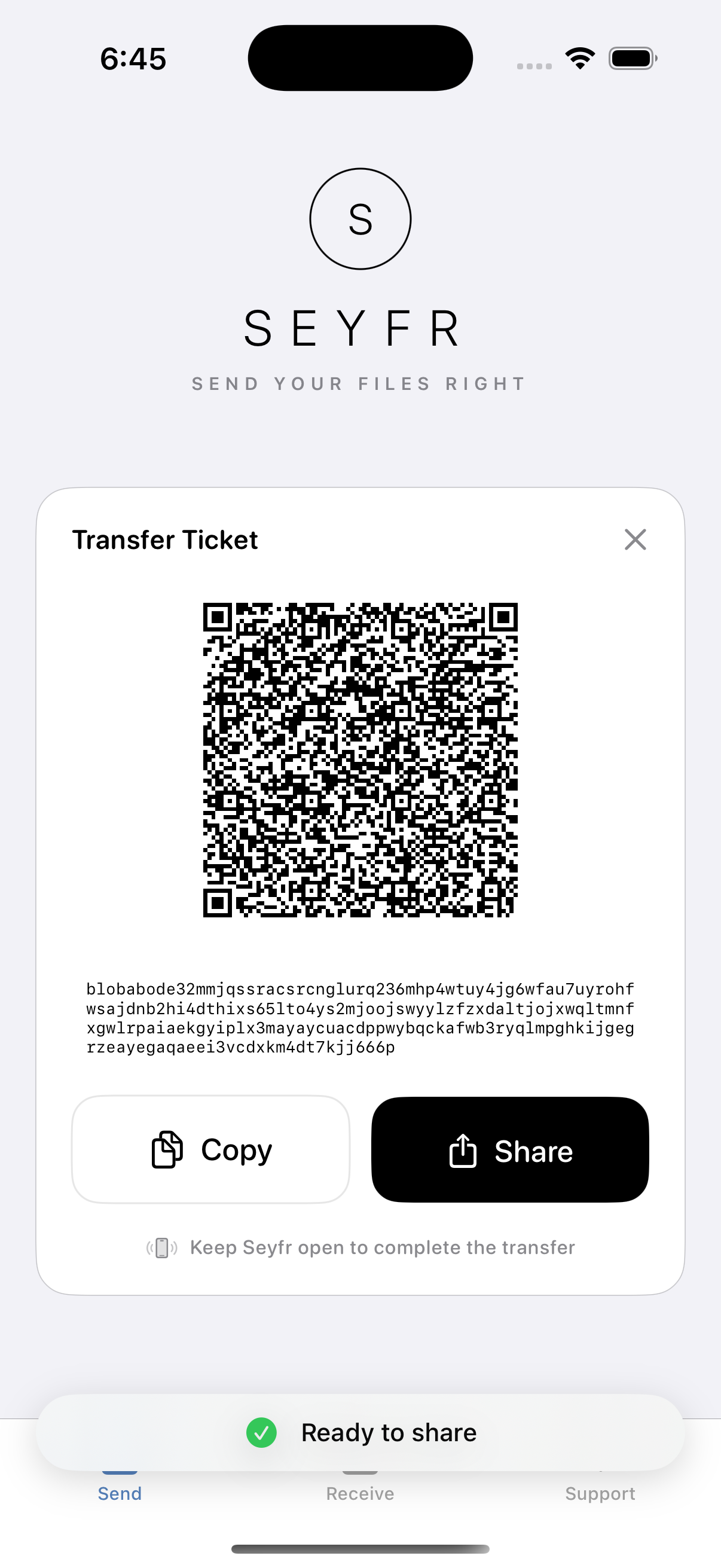
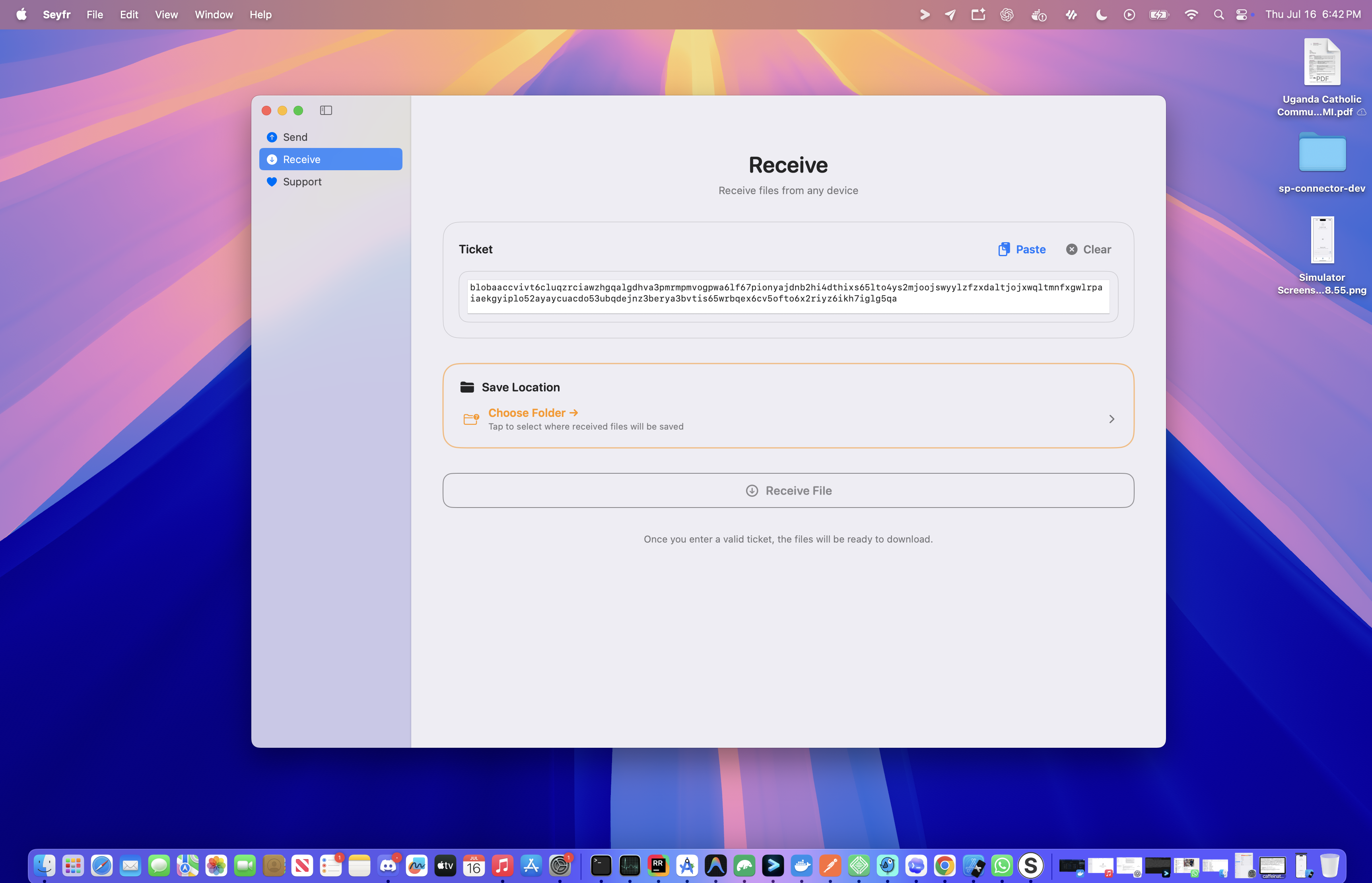
Open the Receive menu on your Mac
Open Seyfr on your Mac, select Receive, and paste the token shown on your Android phone. Choose a destination folder if needed.
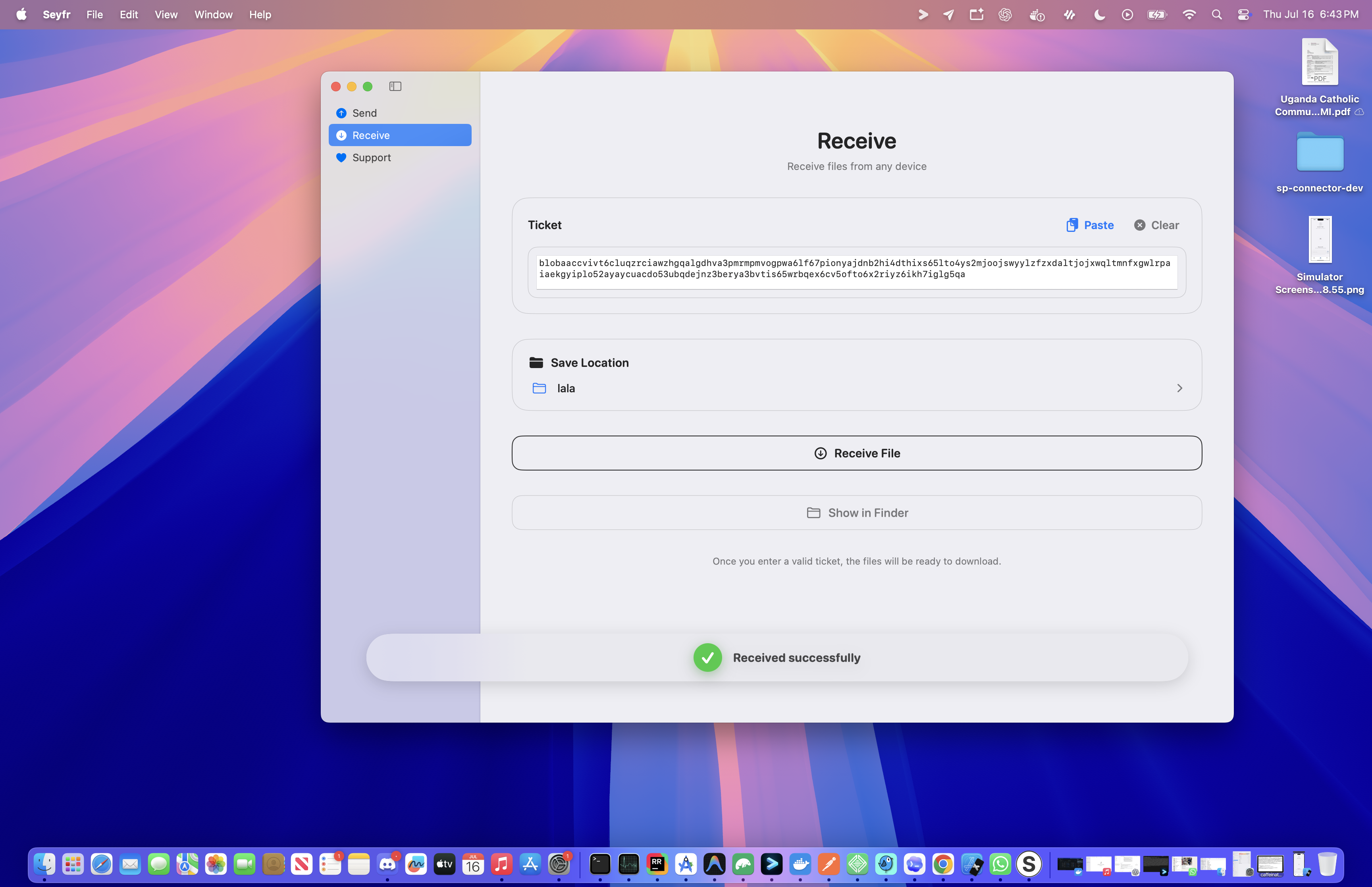
Receive photos on your Mac
Click Receive on your Mac. Photos arrive in your chosen destination folder at full resolution without intentional recompression.
All Photo Formats Supported — No Conversion
SEYFR treats selected content as files and does not intentionally convert these common photo formats:
| Format | Description | Seyfr Support |
|---|---|---|
| JPEG / JPG | Standard photos from all cameras | Full resolution |
| RAW (DNG) | Unprocessed sensor data — Google Pixel, etc. | Exact copy, no processing |
| RAW (ARW, NEF) | Sony, Samsung, Nikon RAW | Exact copy |
| HEIC / HEIF | High Efficiency format — newer Android phones | Mac opens natively |
| 50MP / 108MP photos | Samsung Galaxy, Xiaomi flagship cameras | Full resolution, no downsizing |
| PNG, WEBP, GIF | Screenshots, web images | Full resolution |
Why Android File Transfer Fails on Mac in 2026
Android File Transfer (AFT) by Google uses the MTP protocol over USB. This approach has had growing compatibility problems since Mac (Ventura and Sonoma), and broke further when Android 14 changed MTP implementation. Google last updated AFT in 2021.
Common failure symptoms:
- "Could not connect to device" even with a working cable
- AFT opens but shows no files or photos
- AFT hangs or crashes on M1/M2/M3/M4 Macs
- Error message: "Android device cannot be found"
SEYFR uses its Android and macOS apps instead of an MTP driver. Compatibility depends on the device and current store requirements; install the supported SEYFR app on both devices.
Android Photo Transfer to Mac: What Determines Speed?
Transfer time depends on both devices, file count, available storage, local and internet conditions, and whether Iroh connects directly or uses an encrypted relay. A Wi-Fi link rate is not a SEYFR speed guarantee; measure the complete transfer on the devices you actually use.
Android Photo Transfer to Mac: Method Comparison
| Method | USB Required | Works on Ventura/Sonoma | Full Quality | Cost |
|---|---|---|---|---|
| Seyfr (wireless) | No | Always | without intentional recompression | Free |
| Android File Transfer | Yes | Often fails | Free (but often broken) | |
| Google Photos | No | Storage limits | Free (15GB) then paid | |
| MacDroid | Yes | $19.99/yr | ||
| WhatsApp/Telegram | No | Heavily compressed | Free (but degrades photos) |
Transfer your Android photos to Mac right now
Free. No USB. No account. Full quality. Supports compatible Macs and all Android phones.
Frequently Asked Questions
How do I transfer photos from Android to Mac?
Install Seyfr on both your Android phone and Mac. Open Seyfr on your phone, select Send, and select the photos you want to transfer. On your Mac, select the Receive menu and paste the token from your phone to start the transfer wirelessly. No USB cable, no Android File Transfer, no Google Photos needed.
How do I transfer photos from Android to Mac without USB?
Use Seyfr on both devices. Select Send on your phone and choose the photos. On your Mac, select Receive, paste the token, choose a destination folder if needed, and click Receive. They transfer at full quality with no USB cable, Android File Transfer app, or drivers required.
Does Android File Transfer work for photos on Mac in 2026?
Android File Transfer by Google has had widespread issues since Mac (Ventura and Sonoma), especially on M1/M2/M3 Macs and Android 14+ phones. Seyfr is the wireless alternative that works reliably on all versions.
Can I transfer RAW photos from Android to Mac?
SEYFR can transfer common photo files including RAW, JPEG, and HEIC when Android allows you to select them. It does not intentionally re-encode or recompress the file.
Can I transfer an entire camera roll from Android to Mac at once?
Yes. Select your entire DCIM/Camera folder and transfer everything in one operation. On a 300Mbps Wi-Fi network, 10GB of photos transfers in about 5-7 minutes.
Do photos lose quality when transferred from Android to Mac with Seyfr?
No. Seyfr sends files bit-for-bit identical to the original. Your 50MP photos stay 50MP. Your 108MP Samsung photos stay 108MP. Nothing is compressed, re-encoded, or resized.
How do I transfer photos from Android to Mac without Google Photos?
This SEYFR workflow does not use Google Photos or its storage quota. An Iroh relay helps the devices connect, then steps back when a direct path works. If no direct path can be established, it forwards the end-to-end encrypted transfer without reading or storing the photos.